SocialLead Quick Tour
Getting Started
A high-level overview of the platform
SocialLead Quick Tour
This introductory article will help you get familiarized with the different sections of the SocialLead platform, so you can make the most out of all the features available to you.
__________________________________________________________________
Table of Contents
Home
My Inbox
Team Inbox
Outbox
My Campaigns
Sent
Connections
Settings
__________________________________________________________________
Home
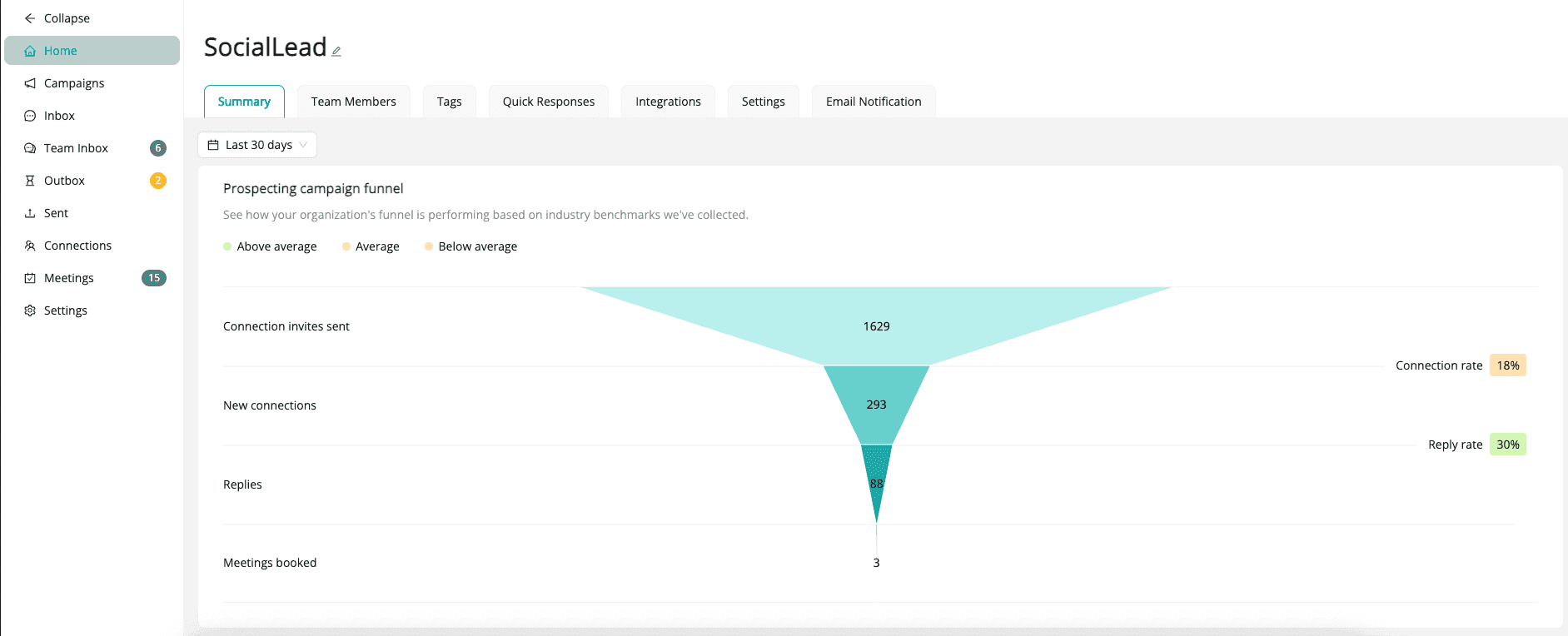
Home is the first screen you'll see upon logging in. This is your SocialLead homepage, and it gives you access to the most important information and links to ensure your campaigns are healthy.
Use the Org Hub to:
Get insights and metrics into the performance of your prospecting
Manage Team Members (if on a Teams plan)
Manage Tags in your account
Manage Quick Responses
Manage Integrations (not available on all accounts)
Adjust your account Settings
Adjust Email Notification settings
Campaigns
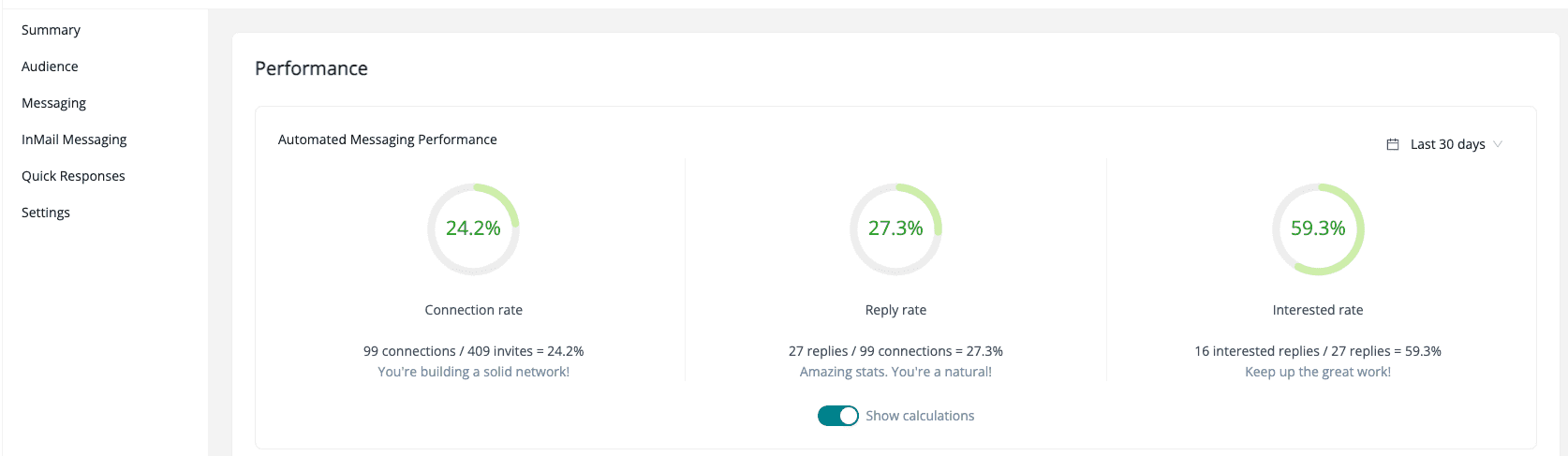
The Campaigns section is the nerve center of your SocialLead account. This is where the configuration for your messaging automation happens. We recommend checking this section regularly to make sure your campaigns continue to perform with the current configuration.
Use this page to:
Navigate to and manage your specific campaigns
Update Audience, Messages, Mail Messaging, Quick Responses, and Settings (invite count and sending hours)
View all connections associated with each campaign
Inbox
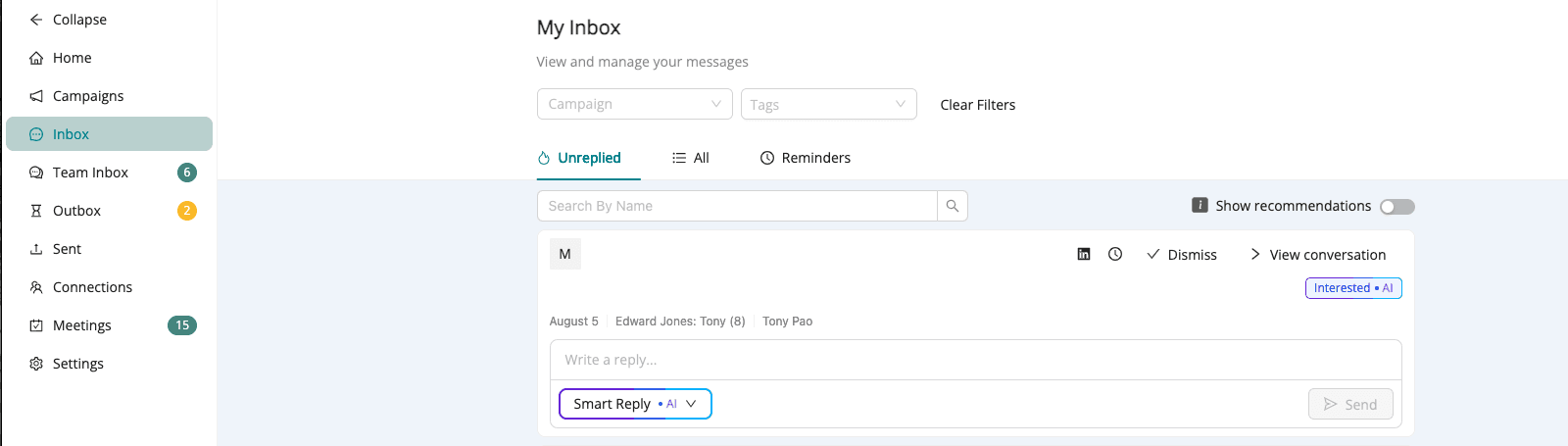
As your campaigns continue to run, the Inbox page will quickly become your go-to day-to-day operations center within SocialLead, and one of the pages to regularly visit.
Team Inbox
If you are a User with Administrative permissions, here is where you will find all the messages from other team members in your account.
Outbox
View messages currently queued to be sent from your account before they go out.
Sent
Messages manually sent and delivered to prospects via SocialLead (eg. through the Inbox) will be recorded in the Sent box once it has left the Outbox. You can filter by the contact name and order by Last Updated.
Connections
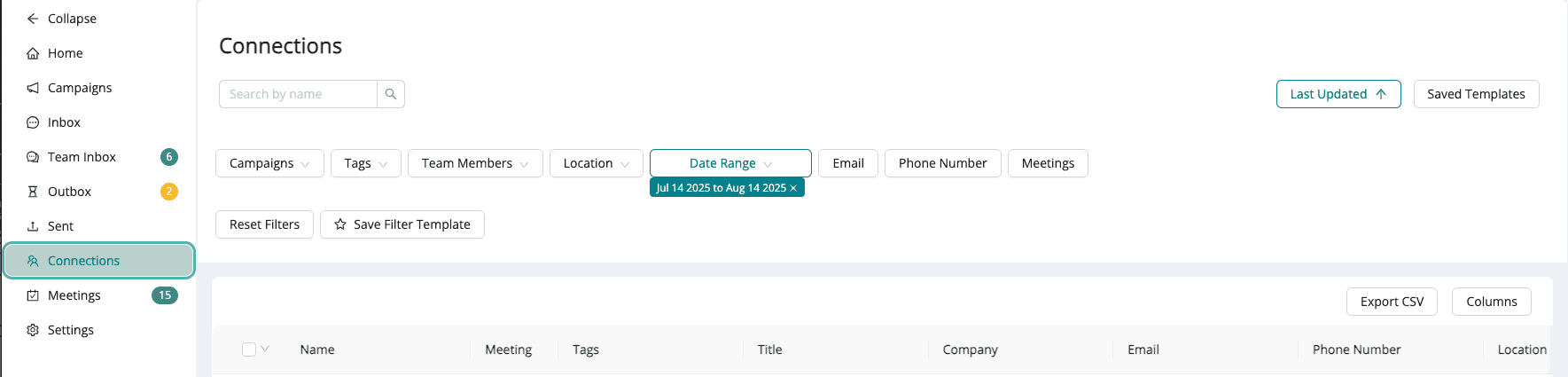
The connections page is your record of all the connections you’ve made while prospecting with SocialLead or who are associated with a nurture campaign.
Use this page to:
View all of your connections
Search leads by name, tags, status, and more
Export a full or filtered list of connections as a CSV
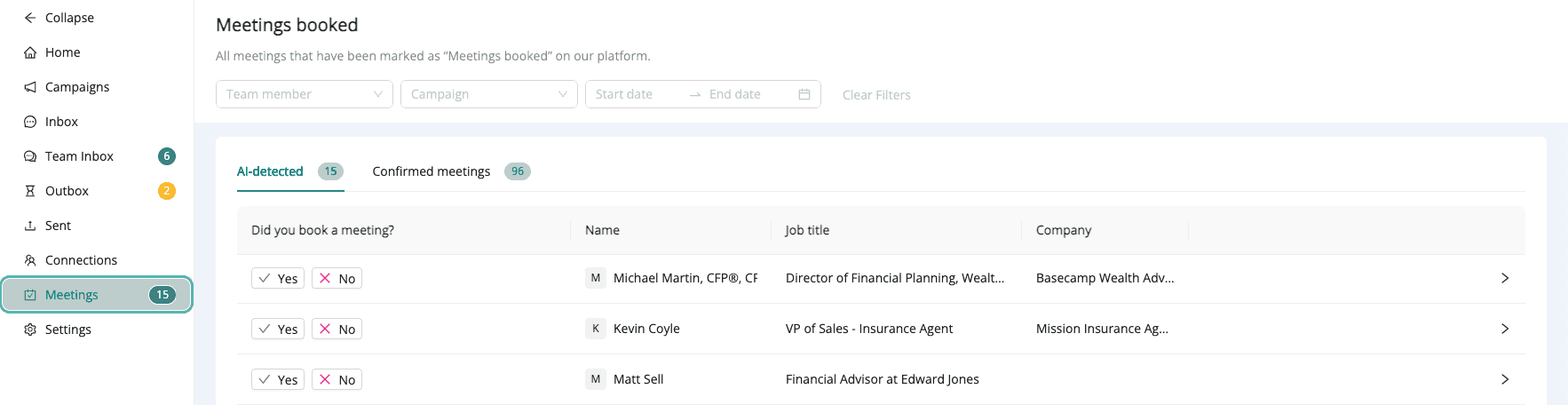
Meetings
The Meeting page will show all meetings that have been booked.
Settings
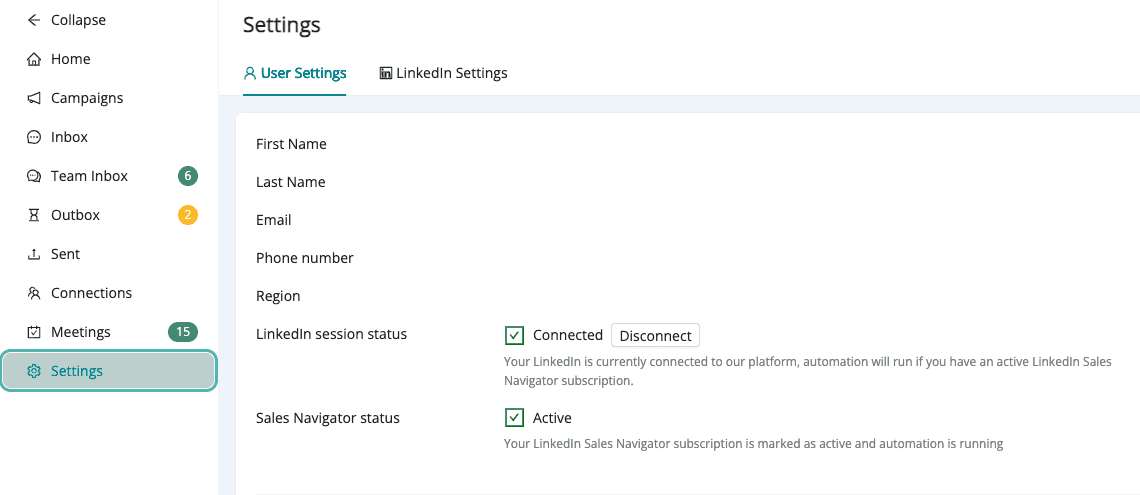
The settings page contains all account-level configurations.
Use this page to:
Change account information, password, and email notifications
Manage account connection
