Reminders
Managing Your Inbox
Reminders are a way to continue conversations at a later date and follow up on potential opportunities
Set Reminder
Go to your Inbox
Click the clock icon in a message
Choose from default date options or customize your reminder schedule.
View your scheduled reminders
To get a view of messages that have a reminder set to them:
Open up My Inbox or Team Inbox
Click the Reminders tab along the top
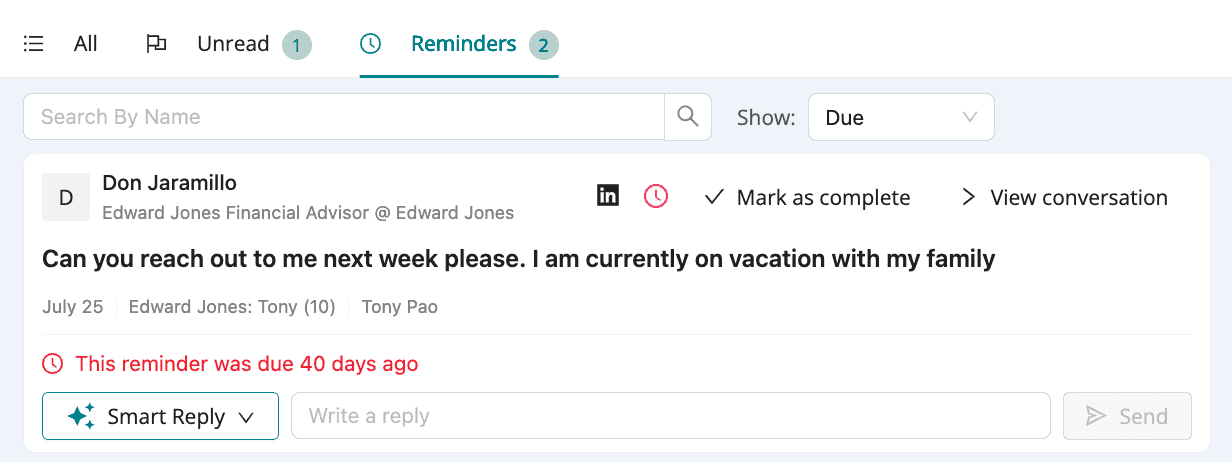
Edit or Complete scheduled reminders
Click the clock (🕗) icon on the specific reminder you wish to modify
Select Edit and pick a new date to change when you will be reminded, then click Set Reminder
ORSelect Mark as complete to remove the reminder from either the clock dropdown or through the Mark as complete button.
